Using kdiff3 to Reconcile VuFind Customizations After Upstream Updates
VuFind's local customization model encourages copying core configuration and theme files into a local directory, keeping institutional changes separate from the upstream codebase. While this simplifies understanding local modifications, it creates a significant maintenance burden during upgrades: local copies drift out of sync with evolving core files, and reconciling changes by hand is tedious and error-prone.
These are resources and slides from a presentation at WOLFcon2026 on how to use kdiff3, a graphical 3-way merge tool, to streamline the process of updating locally customized VuFind configuration and theme files after an upstream merge. By leveraging a Git clone of pre-merge file versions and feeding them into kdiff3 alongside the updated core and local copies, administrators can visually identify, review, and resolve conflicts with confidence—turning a dreaded upgrade chore into a manageable, largely automated workflow.
Learning objectives:
- Understand the concept of a 3-way merge and how it applies to reconciling local VuFind customizations with upstream core file changes.
- Gain hands-on familiarity with kdiff3 as a graphical merge tool for visually resolving conflicts in configuration and theme files.
- Recognize common conflict patterns in VuFind configuration and template files and strategies for resolving them efficiently.
Resources
- Python script
- Demian’s blog post: Automatically updating locally customized files with Git and diff3
Slide 1: Title Slide — WOLFcon 2026
Upgrading VuFind is usually a smooth process—until you look closely at your customized templates, configurations, and themes. Today, we're going to explore how to eliminate the manual pain of upstream upgrades by using KDiff3 and a simple Python automation script to reconcile local customizations. To understand why this automated approach is necessary, let's revisit the core architectural rule every VuFind administrator learns on day one.
Slide 2: The Core Architecture Rule
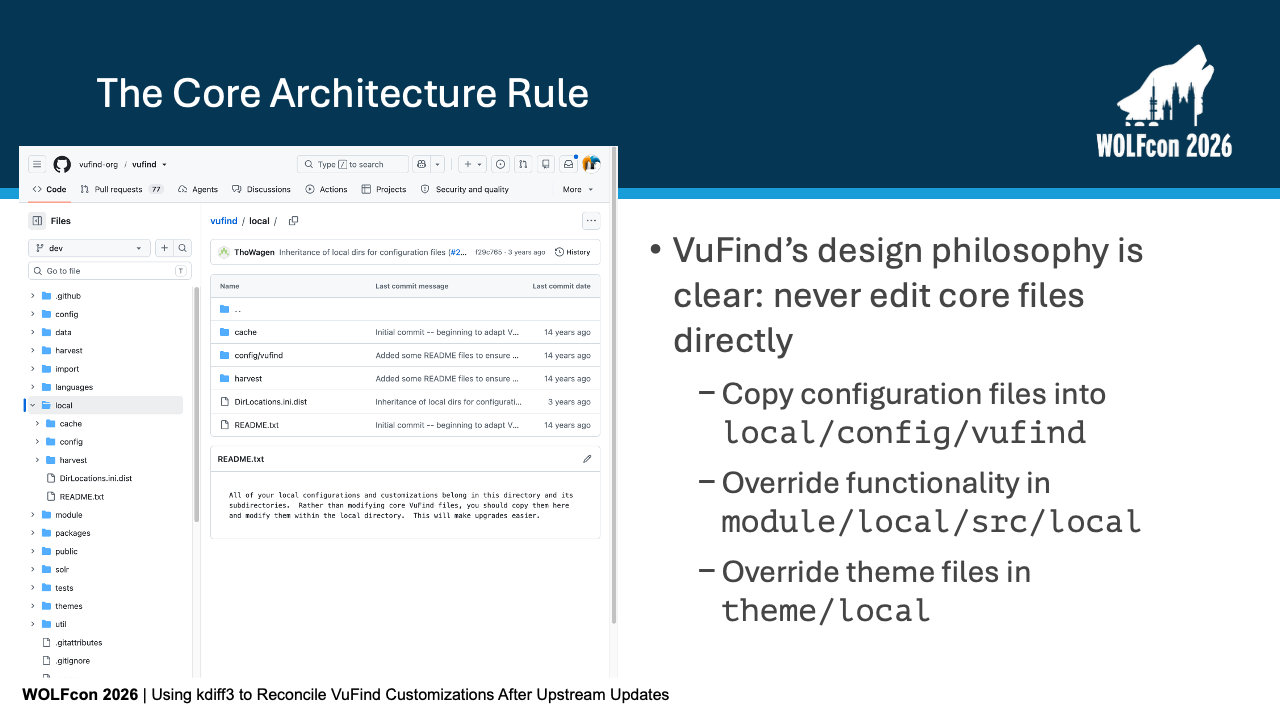
VuFind’s design philosophy is rock-solid: never edit core files directly.
Instead, you copy configuration files into local/config/vufind, override PHP classes in module/local/src/local, and place custom template overrides in themes/local.
This design keeps all your institutional tweaks in isolated folders, protects core code, and makes onboarding new developers straightforward.
While this setup protects your customizations, it quietly creates a secondary problem over time.
Slide 3: Out of Sight, Out of Sync (The "File Drift" Problem)
We can call this 'file drift'.
While your local override sits safely in local/, upstream VuFind releases keep advancing—adding new configuration parameters, security patches, accessibility fixes, and JavaScript updates.
Because VuFind prioritizes your local override, your site silently ignores those upstream core improvements.
You are left with a bad dilemma: stay on stale, unpatched overrides, or manually rebuild every customization line-by-line.
When admins try to solve file drift, the first tool they reach for is a standard two-way file diff. But that usually leads straight into a trap.
Slide 4: The 2-Way Diff Trap
If you compare your local file directly against the new core file in a standard two-way diff tool, it highlights that line 45 is different—but it cannot tell you why. Did you make that change three years ago, or did the community add it last week? Lacking historical context, you're forced to rely on your own memory or dig through years of Git commit logs. To resolve this confusion, we need a third reference point: a common ancestor.
Slide 5: Introducing the 3-Way Merge
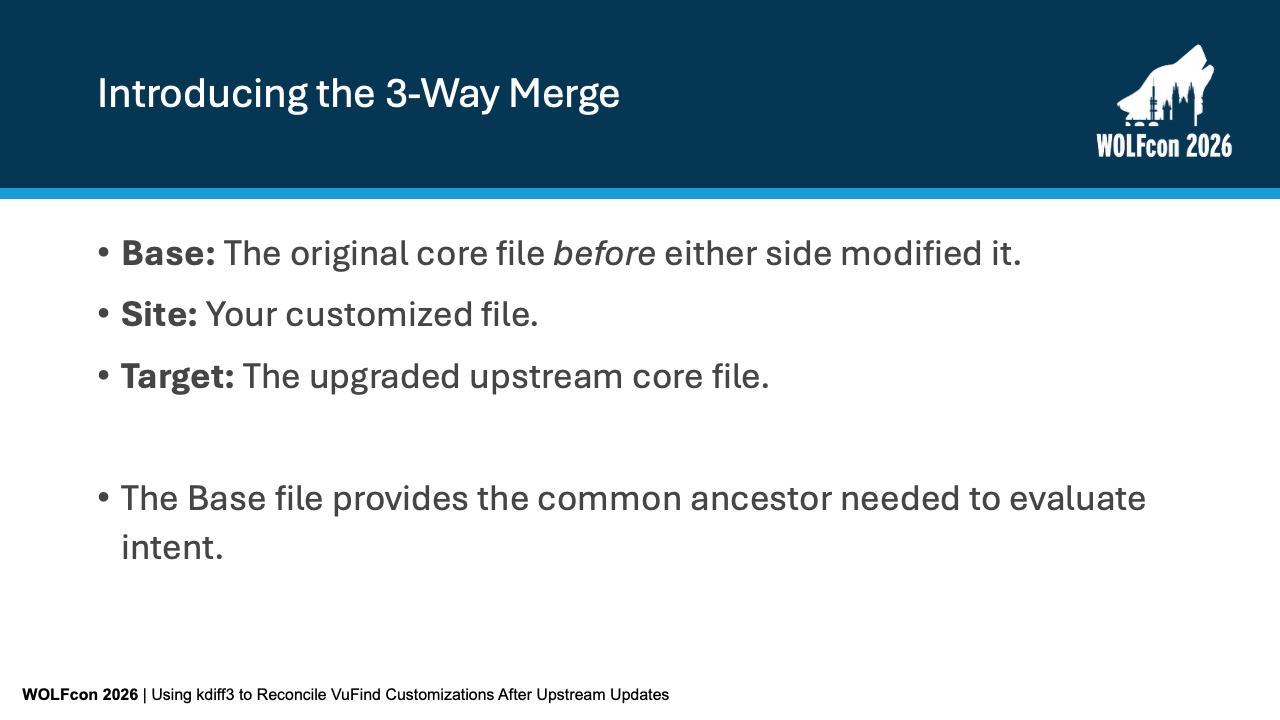
A three-way merge introduces that missing ancestor. We evaluate three distinct files: Base, which is the clean core file from the version of VuFind you are currently running; Site, which is your customized local file; and Target, which is the clean core file from the new VuFind version you're upgrading to. The Base file provides the historical baseline needed to evaluate intent. Now let's look at how KDiff3 visually presents these three sources on screen.
Slide 6: 3-Way Merge in kdiff3
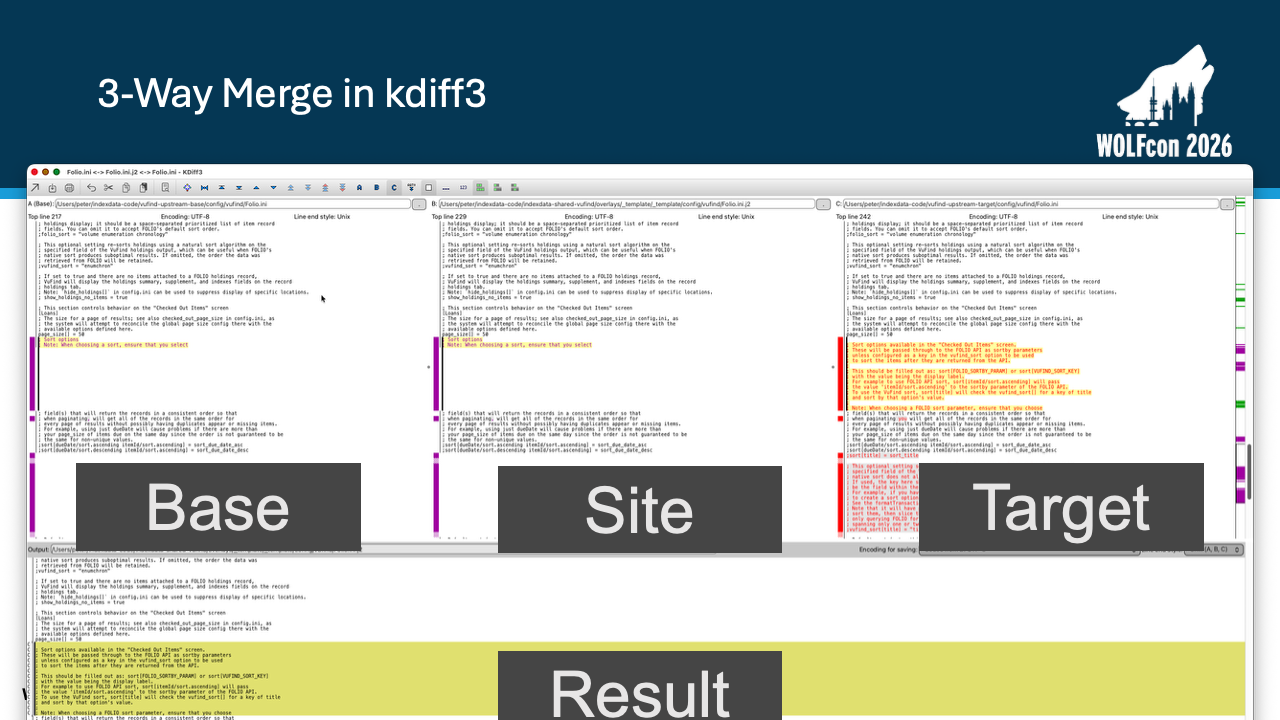
Here is KDiff3 in action on Folio.ini.
Across the top half, you see three side-by-side source panels: Panel A on the left is Base (v10.0.1), Panel B in the middle is Site (your local file), and Panel C on the right is Target (v11.1.0).
The large pane at the bottom displays the live, reconciled output that gets written directly back to your local file.
Let's break down how a three-way merge tool uses that baseline to make decisions automatically.
Slide 7: How 3-Way Merging Works
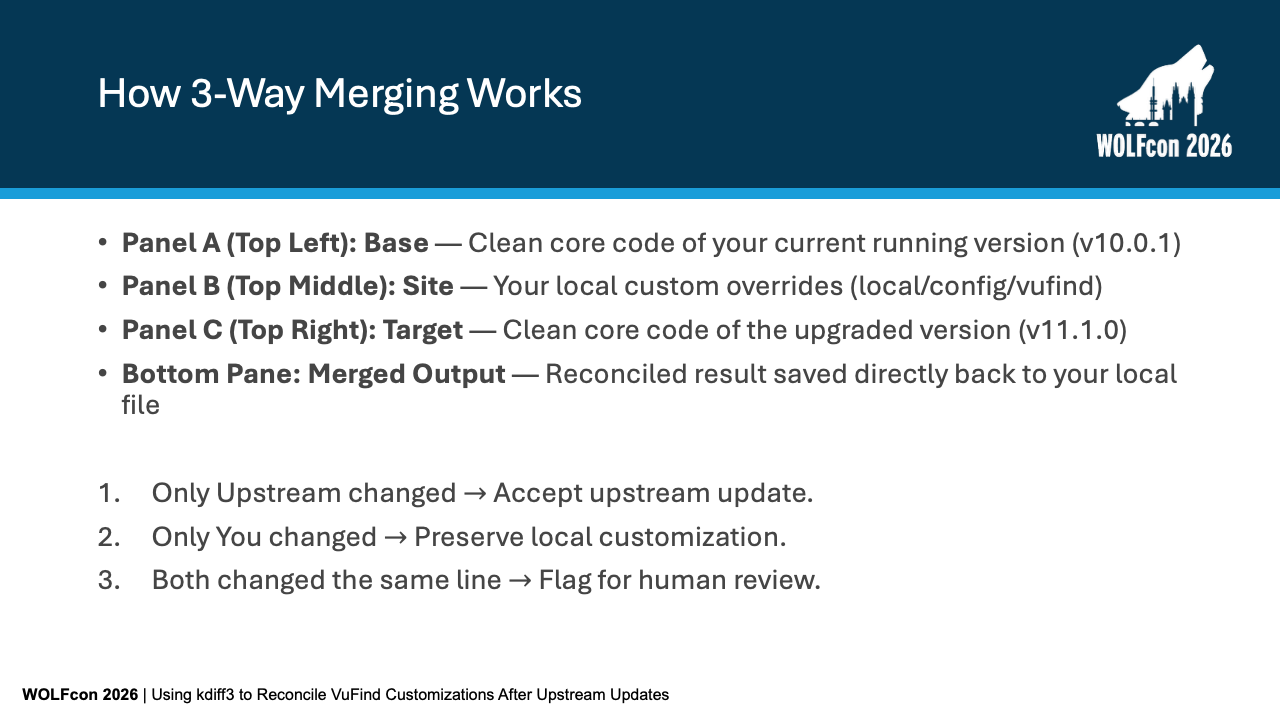
The tool runs two comparisons simultaneously: Base vs. Site calculates your intent, while Base vs. Target calculates upstream's intent. If only upstream changed a line relative to Base, the tool accepts the upstream update. If only you changed a line, it preserves your local tweak. A human only needs to step in when both you and upstream changed the exact same line. To automate this process across dozens of local files, we need to standardize our directory structure.
Slide 8: Standardizing Directory Paths
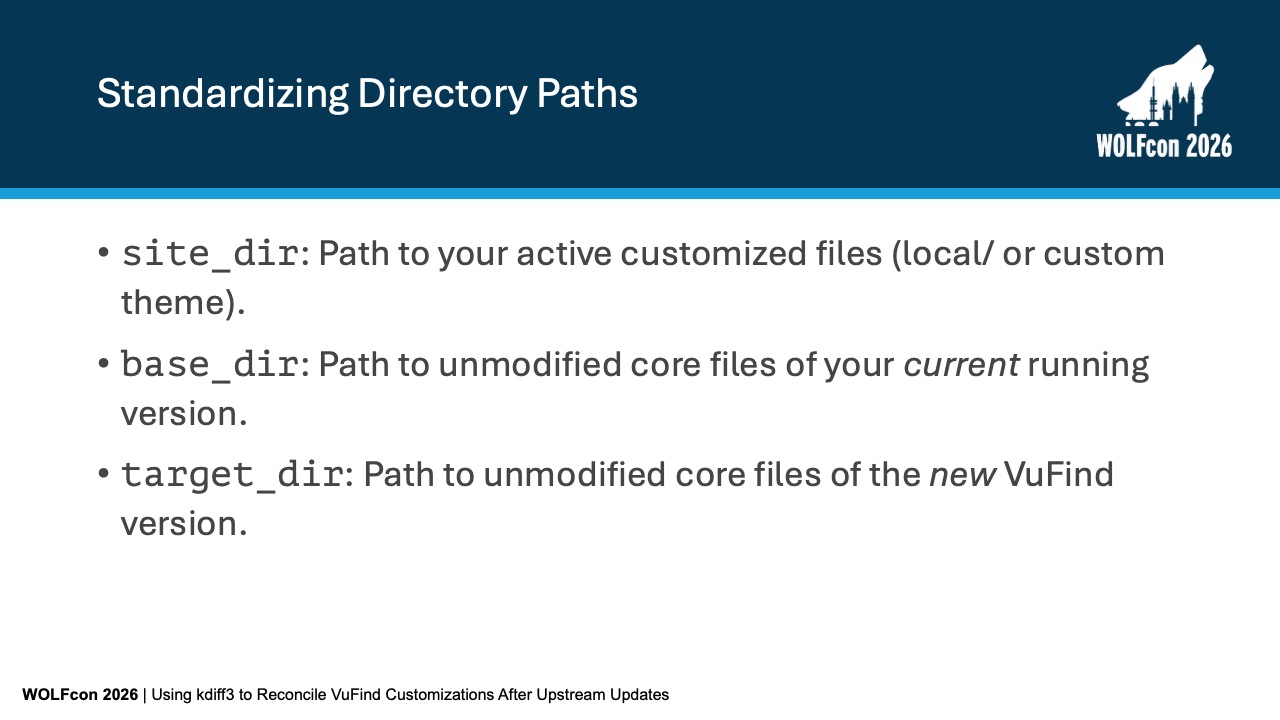
We define three directory variables in our workflow: site_dir points to your active custom overrides; base_dir points to clean core files of your current running version; and target_dir points to clean core files of the new target release.
Before running the merge script, we need to stage those base and target directories on our machine.
Slide 9: Prerequisites and Environment Setup
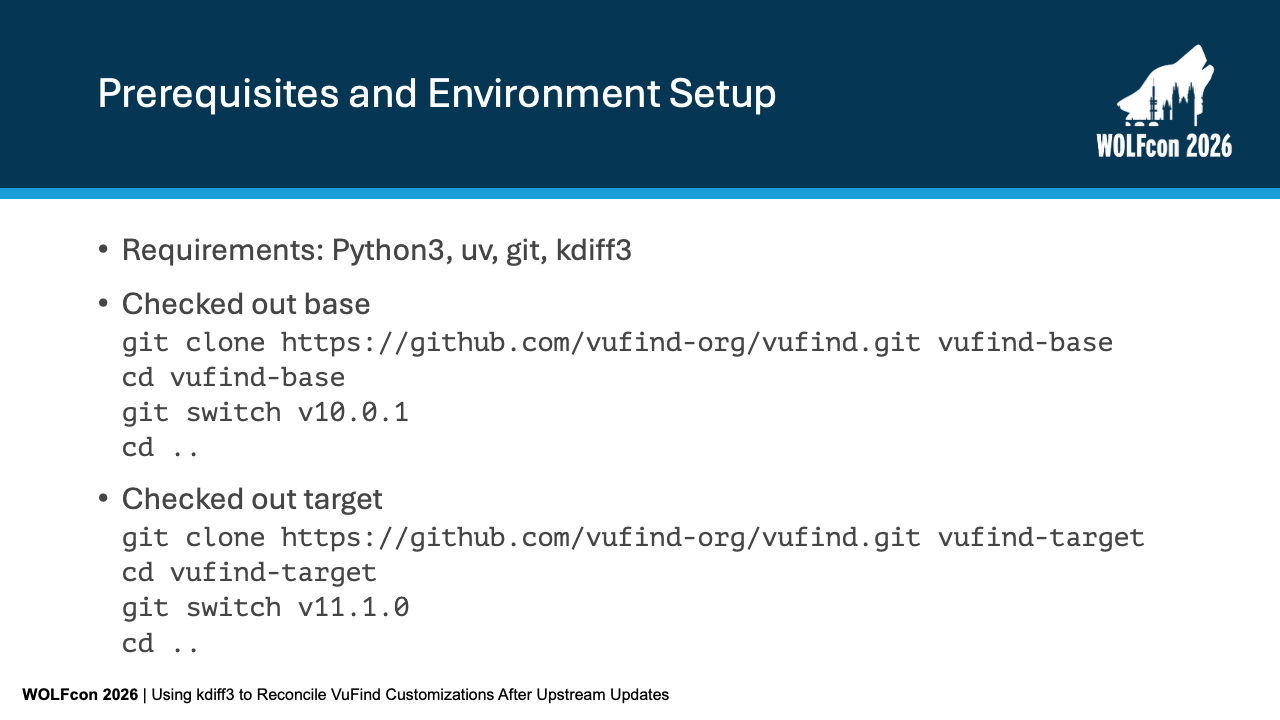
For prerequisites, you need Python 3, uv, Git, and KDiff3 installed.
In your terminal, clone clean copies of the VuFind repository into vufind-base and vufind-target.
Check out your current running version—such as v10.0.1—in the base directory, and checkout the new release—such as v11.1.0—in the target directory.
With all three paths ready, let's look at the Python script that drives the traversal.
Slide 10: Automating Traversal with Python
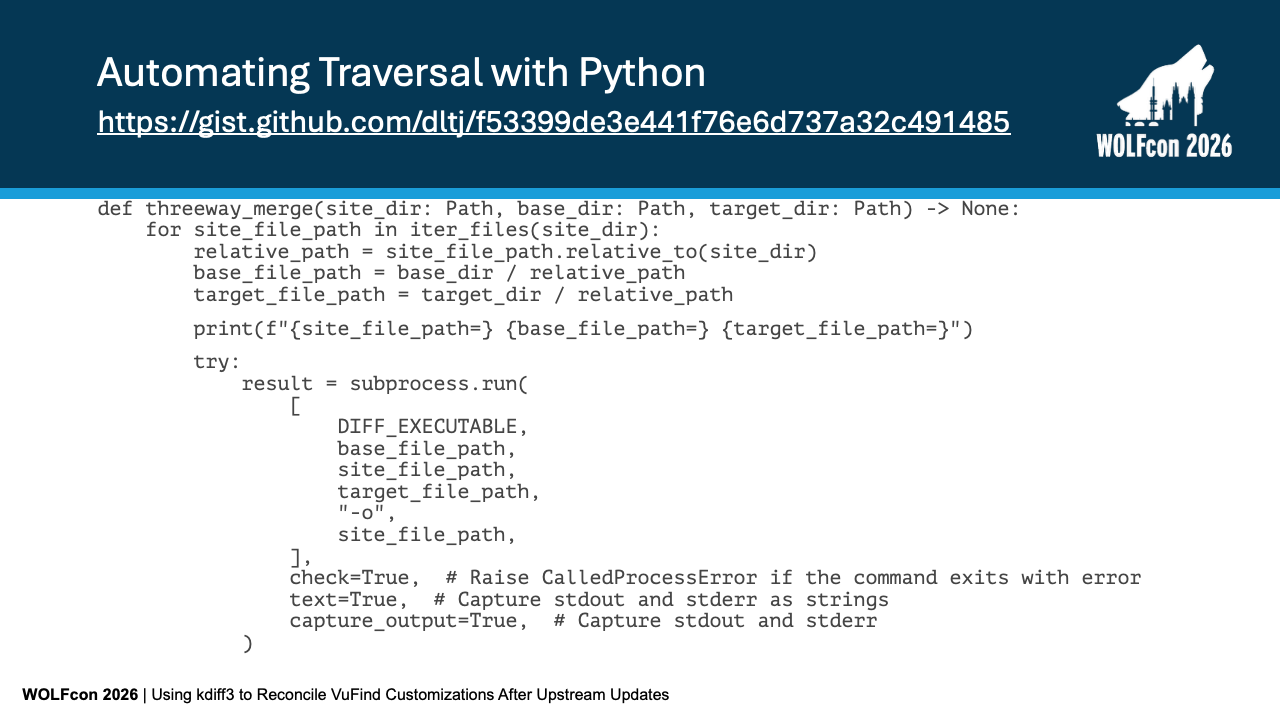
This script automates directory walking.
(The script is available as a GitHub Gist.)
It iterates over every file in site_dir, calculates relative paths, and locates the corresponding files in base_dir and target_dir.
It then calls KDiff3 via subprocess.run, passing base, site, and target, and instructs KDiff3 to write the merged output directly back to site_file_path.
Running this against your VuFind installation requires just a few command lines.
Slide 11: Running the script
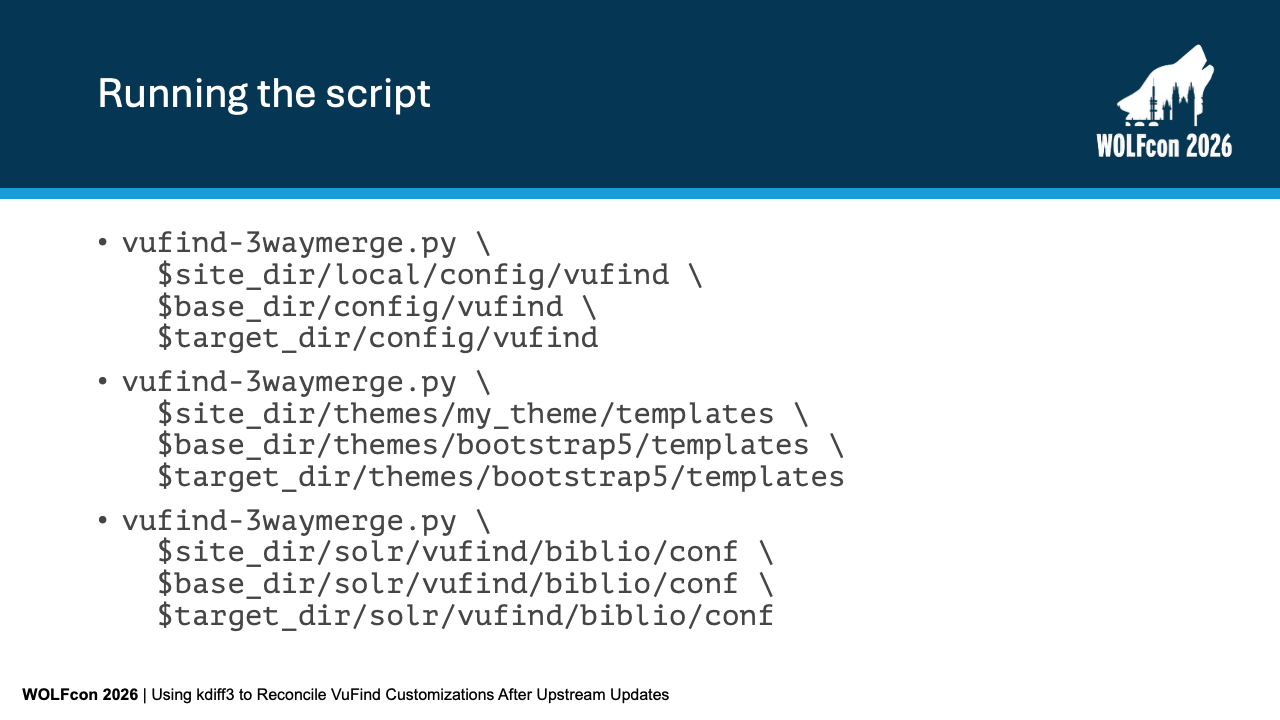
You execute vufind-3waymerge.py by passing the three corresponding paths for your configuration files, custom theme templates, or Solr configurations.
The script processes entire directory trees in seconds.
Let's walk through concrete merge scenarios you will encounter during an upgrade.
Slide 12: Merge Scenario: Our Addition
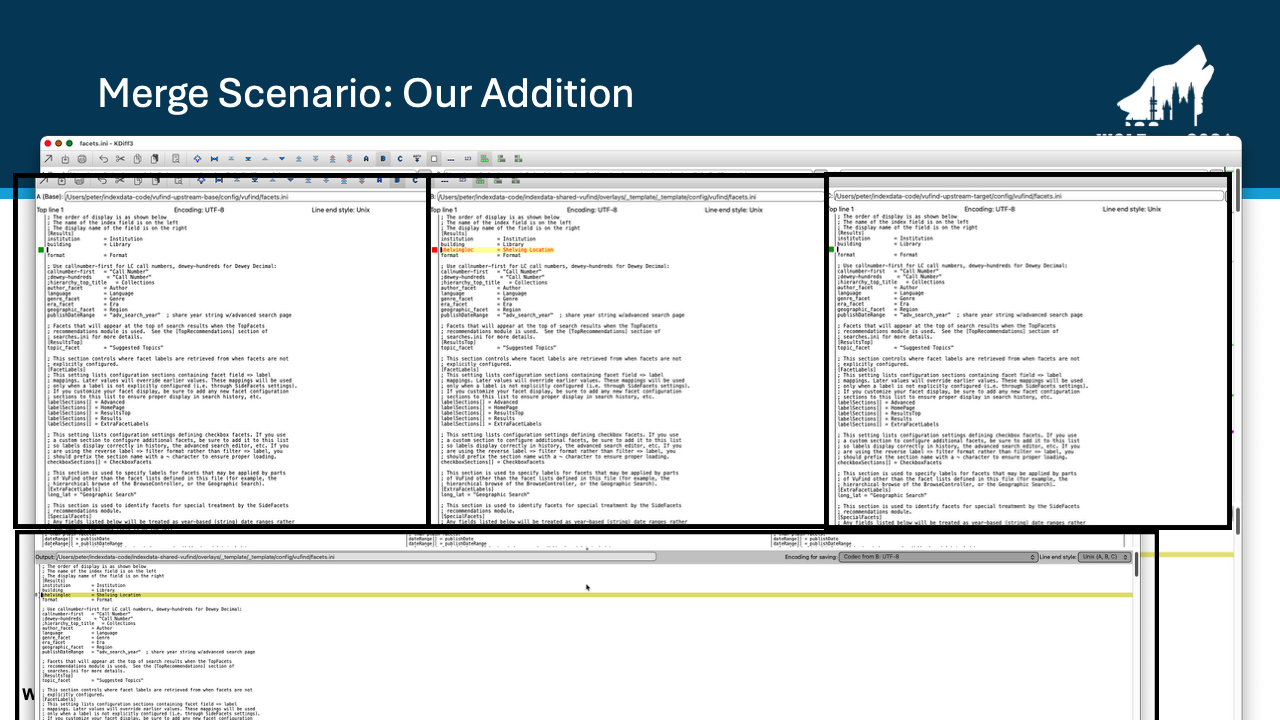
Scenario 1: Our Addition in facets.ini.
Here, we added a custom shelvingloc = Shelving Location facet in Panel B.
Base (Panel A) and Target (Panel C) didn't touch this block.
KDiff3 detects that only Site modified this line and automatically preserves our custom facet in the bottom output pane.
Let's look at a similar case involving an enabled configuration flag.
Slide 13: Merge Scenario: Our Change
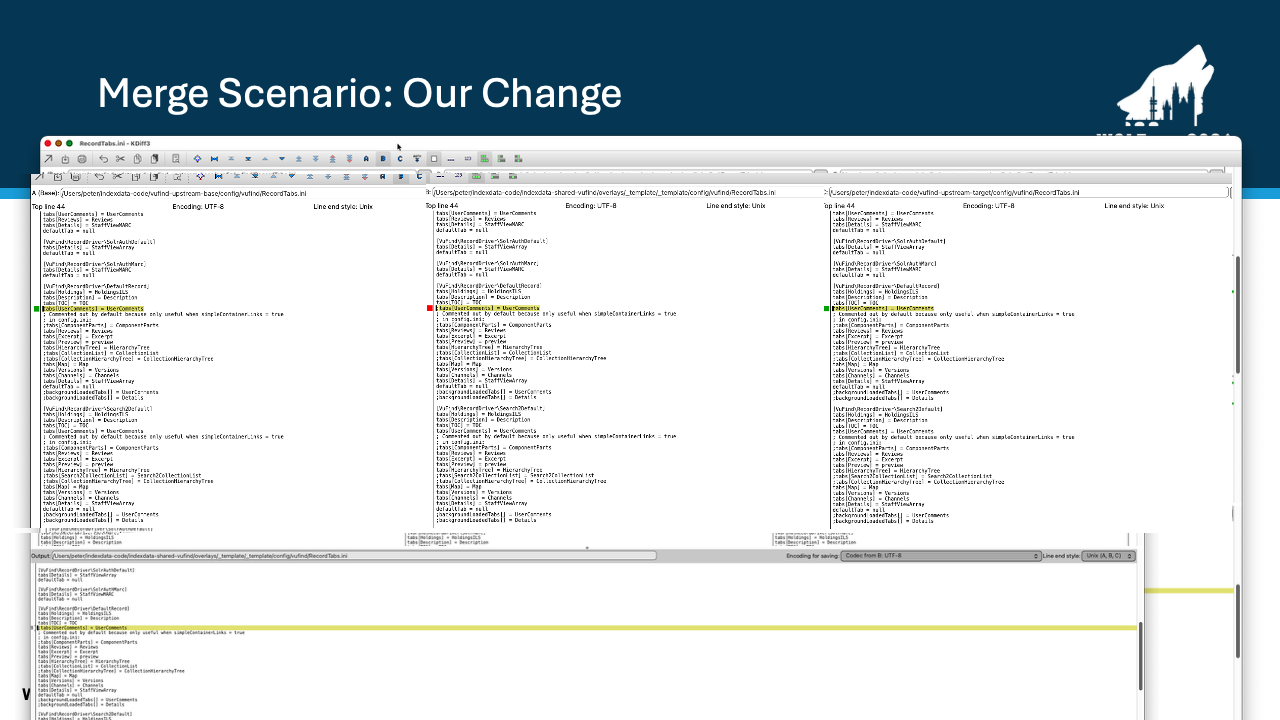
In RecordTabs.ini, we uncommented tabs[UserComments] = UserComments in Panel B to enable user comments locally.
Panels A and C both kept this setting commented out.
KDiff3 recognizes our local change and maintains the active setting in the output file without manual intervention.
Now let's flip the perspective: what happens when upstream adds a new setting?
Slide 14: Merge Scenario: Target Addition
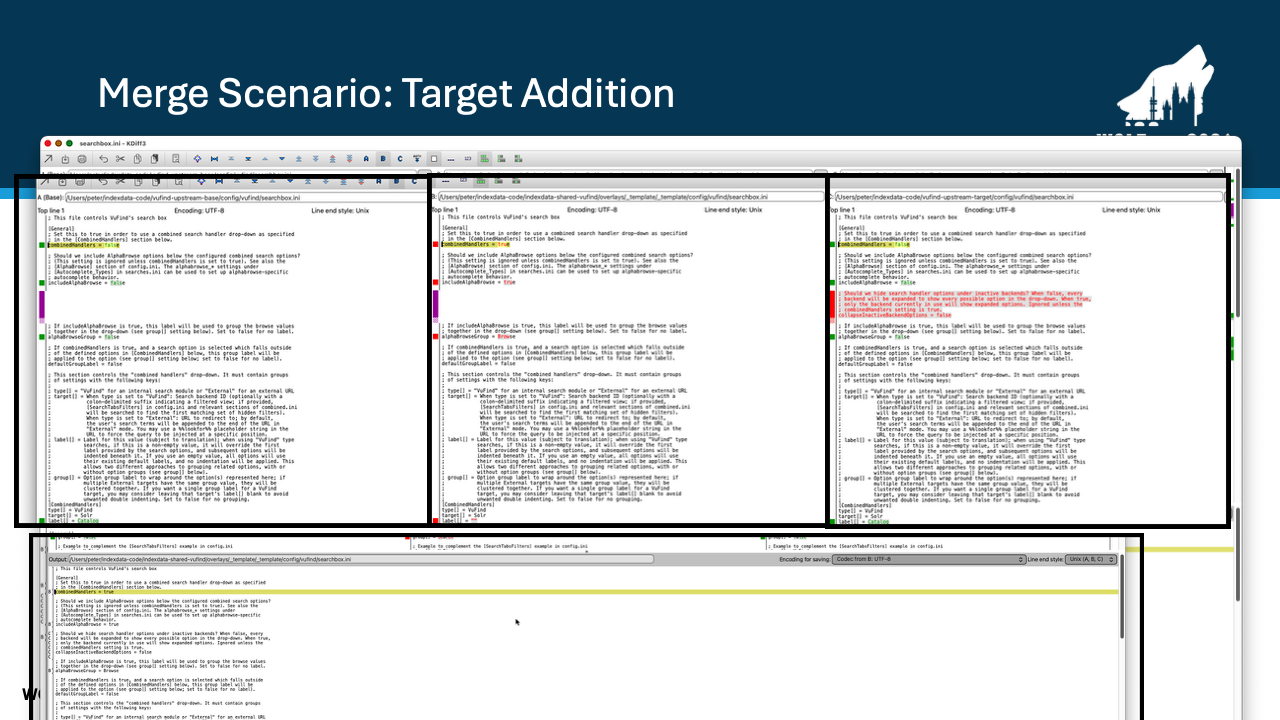
In searchbox.ini, upstream core added a new configuration setting in Panel C: collapseInactiveBackendOptions = false.
Neither Base nor our local file had this line.
KDiff3 automatically pulls this new setting into our local file, ensuring we gain new core capabilities without overwriting our existing combinedHandlers = true setting.
Next, let's look at upstream documentation and setting updates.
Slide 15: Merge Scenario: Target Change
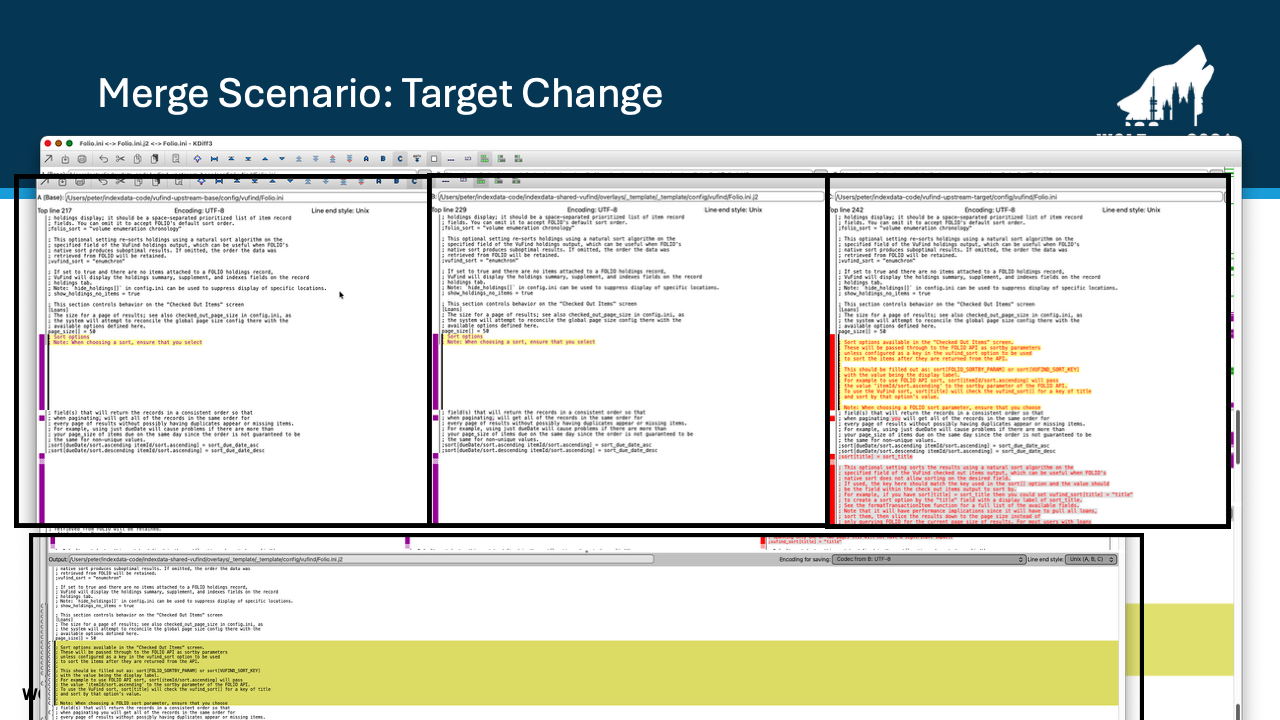
In Folio.ini, upstream developers added extensive documentation comments and new FOLIO sorting options in Panel C.
Because our local file in Panel B hadn't touched those documentation lines, KDiff3 cleanly accepts all new upstream comments and configuration choices into the output pane.
As you first start to do this 3-way merge process, you might run into what happened to me —what happens when local overrides lag behind significant upstream refactoring?
Slide 16: Merge Scenario: Ours Lags Both Base and Target
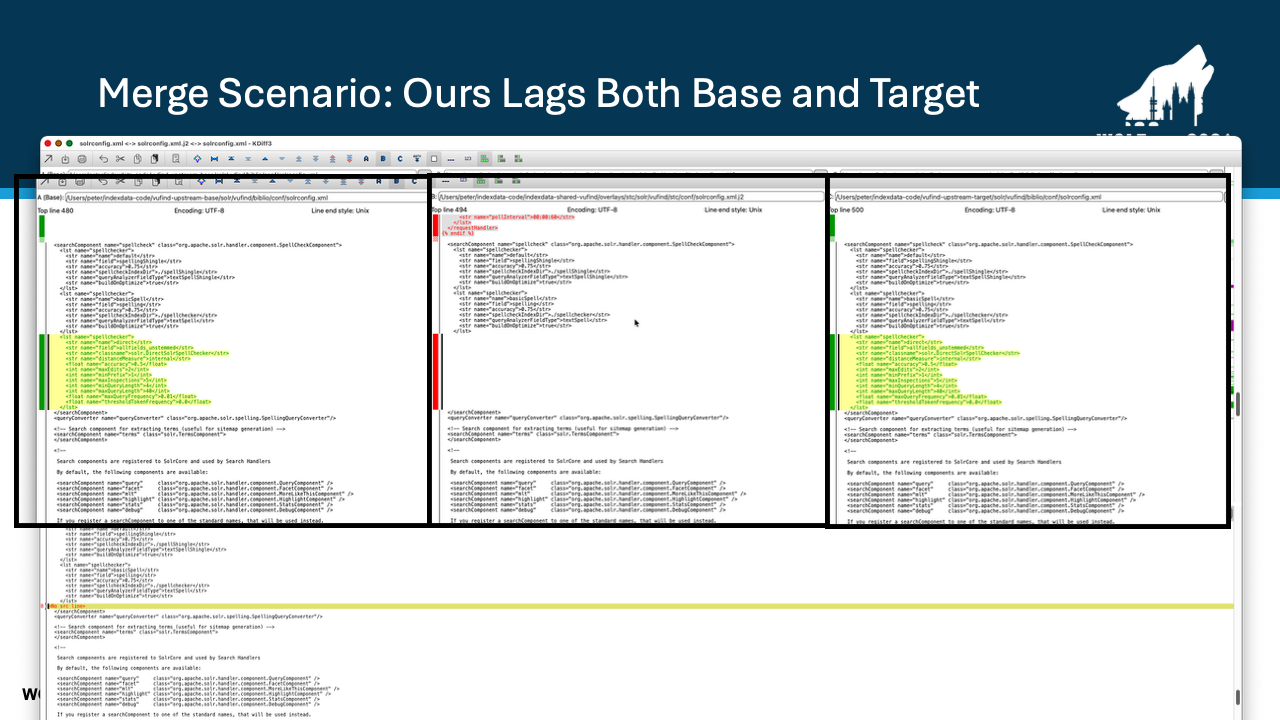
In solrconfig.xml, our local file in Panel B was missing entire search component blocks that existed in both Base and Target.
When your local override lags behind core structure, KDiff3 highlights the missing sections so you can evaluate whether to adopt new Solr handlers or keep your stripped-down configuration.
If you're going to keep up with using 3-way merges of your configuration and theme files from now forward, you're going to want to clean up these lagging situations so you don't keep seeing them with every upgrade.
Even minor formatting and whitespace edits are handled cleanly.
Slide 17: Merge Scenario: Spacing Only
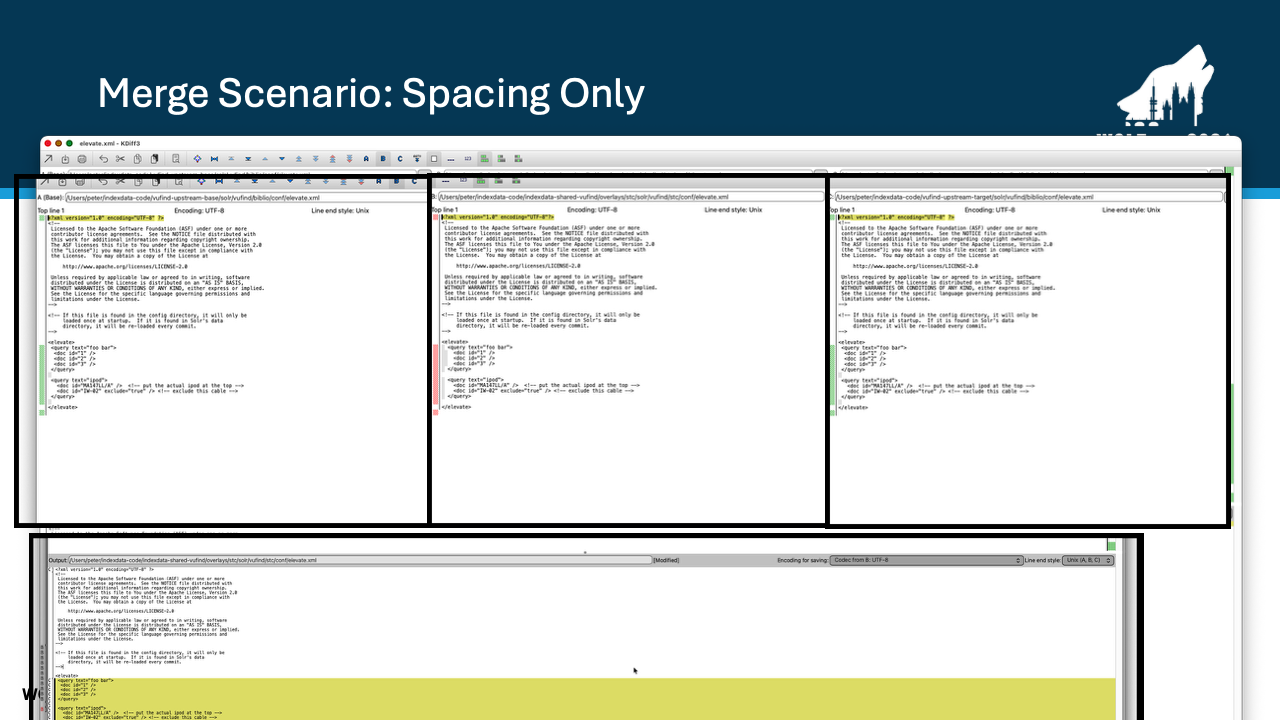
In elevate.xml, the differences between files come down to XML spacing and blank line placement.
This happened to me when my editor changed the spacing indentation.
What we have to do is accept the target changes and reject our site changes to bring these back into alignment.
Finally, let's examine a true conflict where both sides edited the exact same code.
Slide 18: Merge Scenario: Base and Site and Target Changes
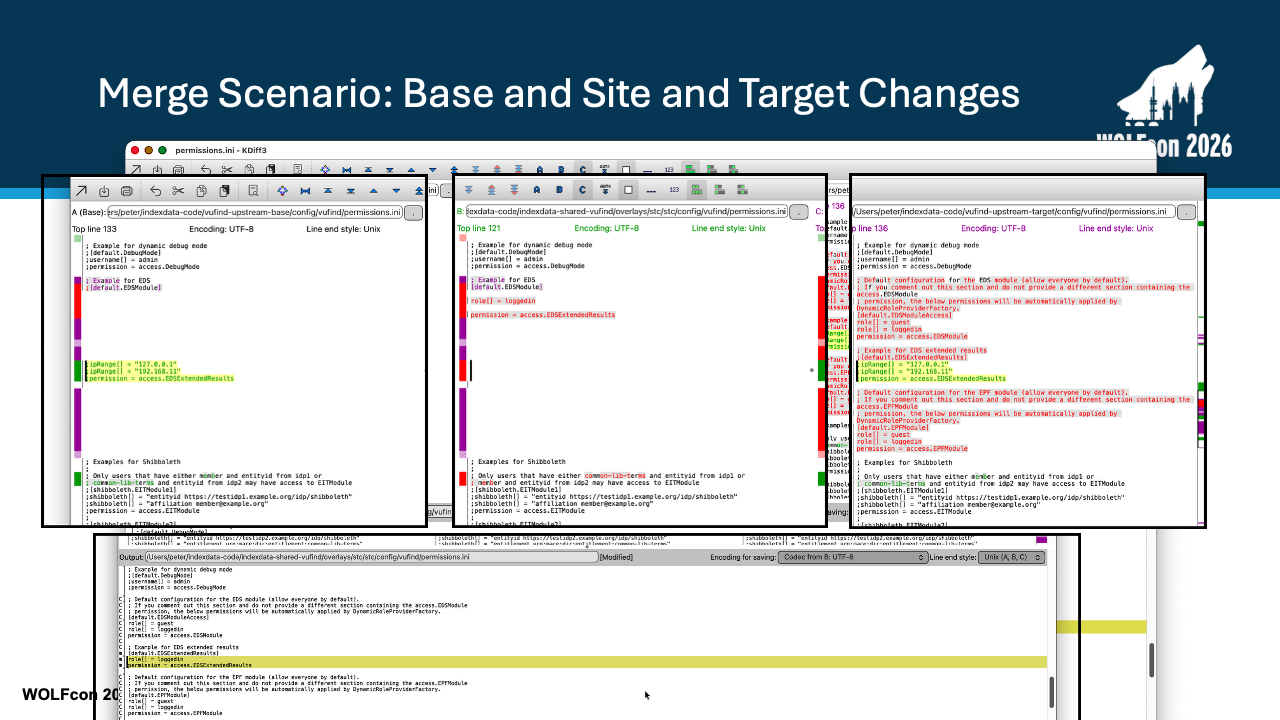
In permissions.ini, both our team and upstream edited permissions in the exact same section — in this case, changes to the permissions for accessing full EDS records.
We've modified the base configuration to use "logged in" as permissions, and the VuFind community has made a change to how these permissions are defined for the EDS module.
KDiff3 flags this as a conflict in red in the bottom pane.
To resolve it, click B on the toolbar to keep your local rules, C to take upstream's changes, or edit directly in the bottom pane to merge both logic blocks.
Here comes what I think is the best part of this process. Once KDiff3 finishes processing all files, your next critical step takes place in Version Control.
Slide 19: If you check your site into version control…
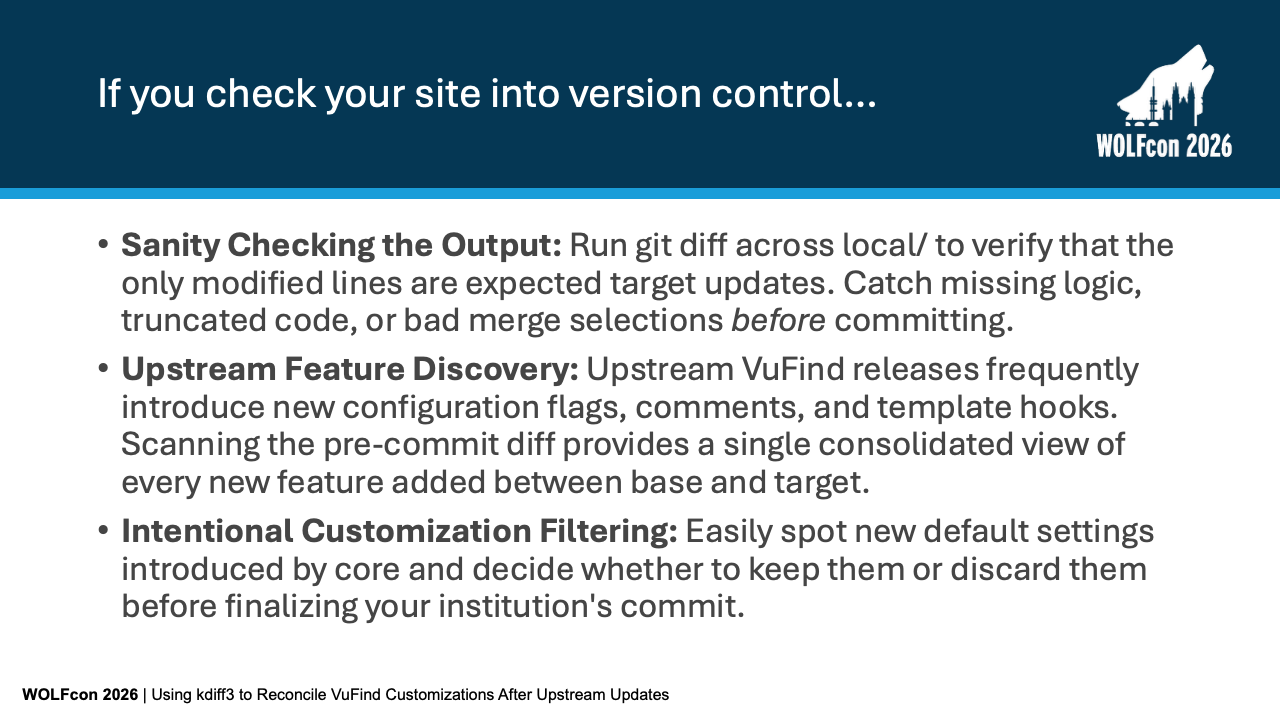
Running git diff after the script finishes turns Git into an auditing tool.
It gives you three big benefits: Sanity Checking, to verify that only expected changes were made; Upstream Feature Discovery, offering a single view of every new configuration flag added in the new release; and Customization Filtering, letting you discard default settings you don't need before committing.
You could use git diff on the command line to see the changes. I'm going to use VSCode to display these these post-merge diffs more clearly.
Slide 20: Post-Merge Git Audit in VSCode — Simple Theme Change
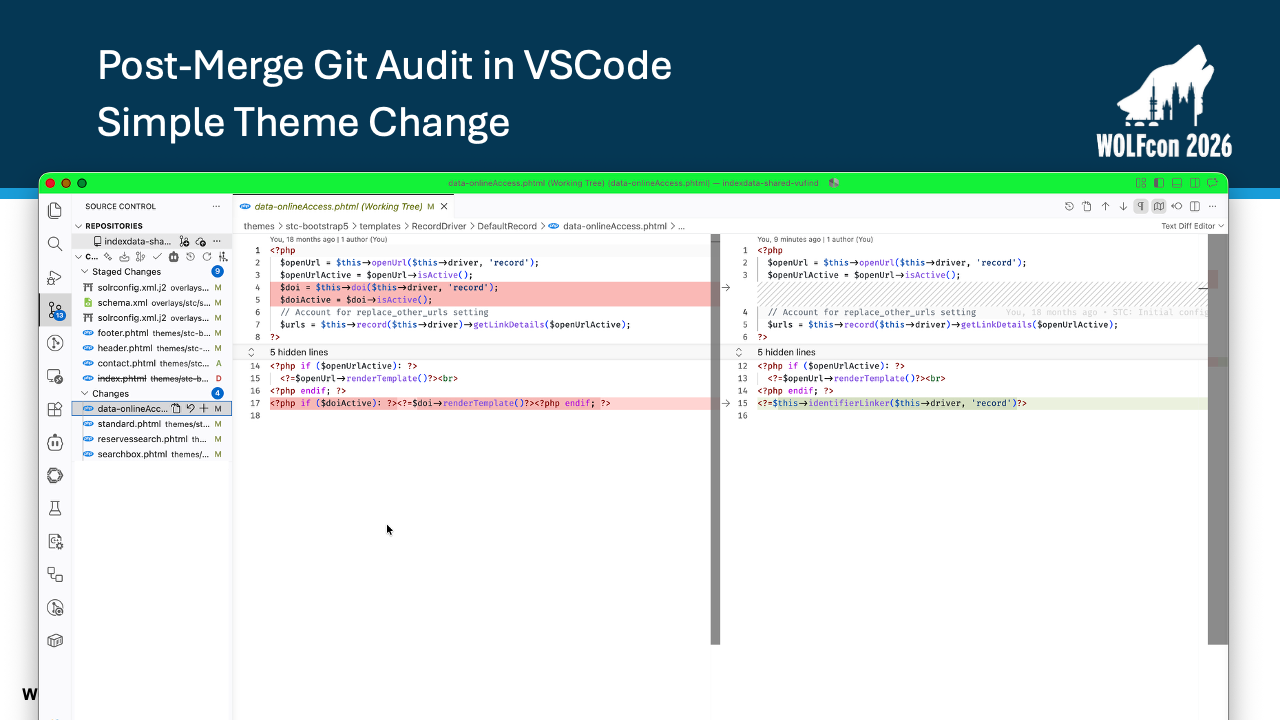
Something that our customers like us to do is turn the "Online Access" link into a button, and to do that effectively, we need to add some tags and classes to the data-onlineAccess.phtml template.
But in a recent change to VuFind folded the $doi rendering logic into a more general identifier linking.
VSCode shows a clean template diff.
What isn't visible here is the change that we made to the template — we're only seeing the changes between the base version and the target version.
Next, let's look at auditing configuration changes.
Slide 21: Post-Merge Git Audit in VSCode — Config Changes
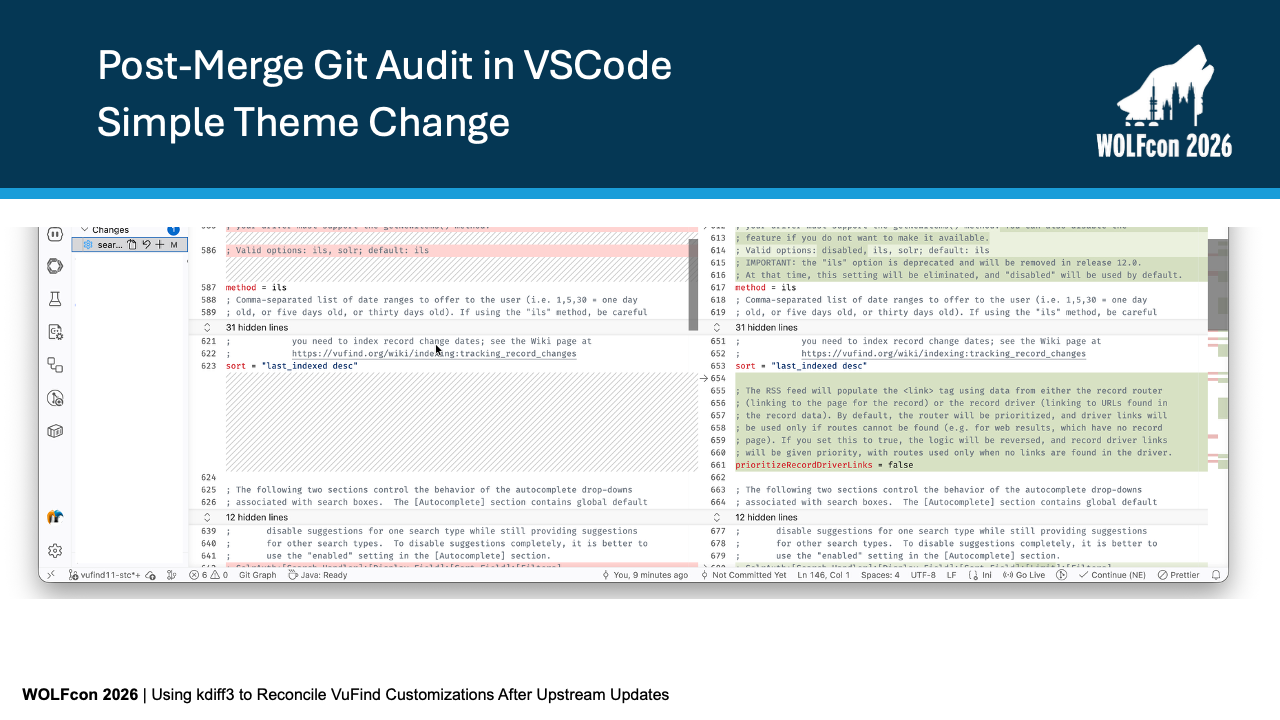
In searches.ini, the pre-commit diff highlights new core parameters added in green—like prioritizeRecordDriverLinks—right alongside our existing CallBackNumber overrides. This makes discovering new features effortless.
We can also review complex structural updates like Solr schemas.
Slide 22: Post-Merge Git Audit in VSCode — Complex Upstream Changes
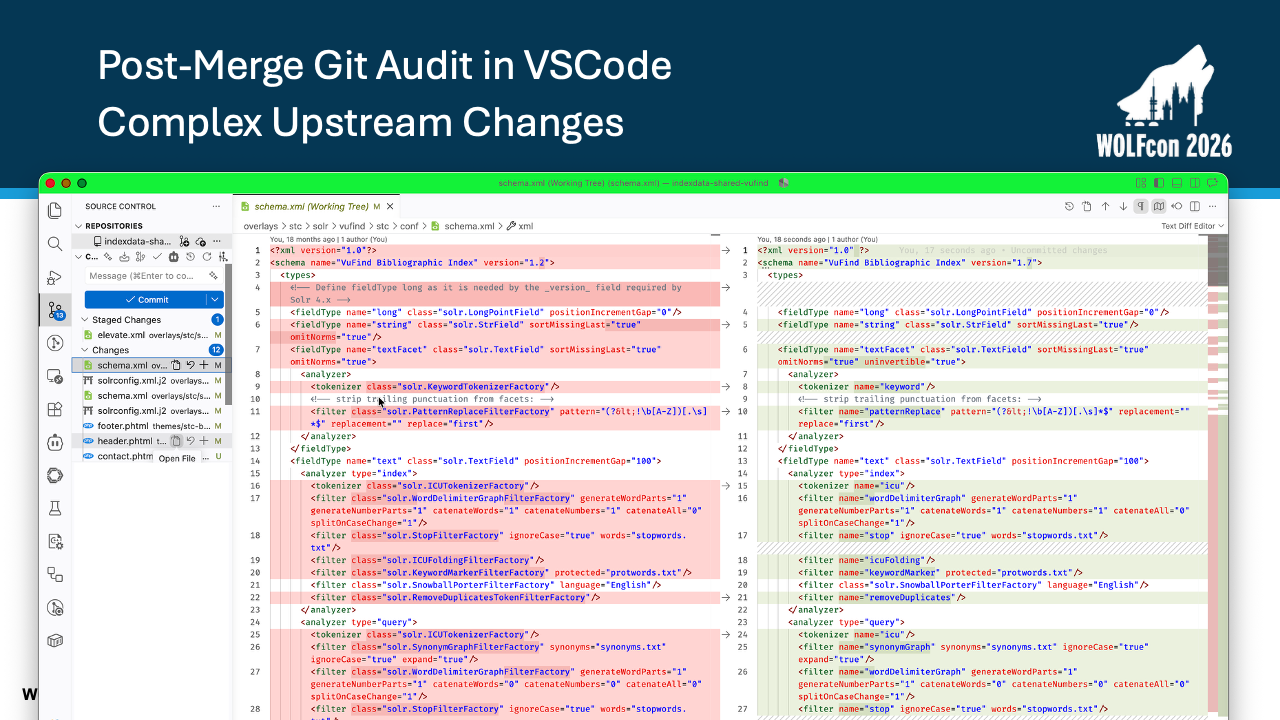
One of the thing you're going to run into on occasion are wholesale changes to files, such as this case in schema.xml.
Some changes in Solr's configuration meant that the VuFind developers had to make some significant changes to this file.
VSCode’s diff view lets us verify that Solr index field definitions remain aligned with the new VuFind target release.
It also lets us verify that the customizations we've made to schema.xml aren't showing up here as 'reverting changes'.
And finally, verifying that our changes are still in place.
Slide 23: Post-Merge Git Audit in VSCode — Permissions Change Check
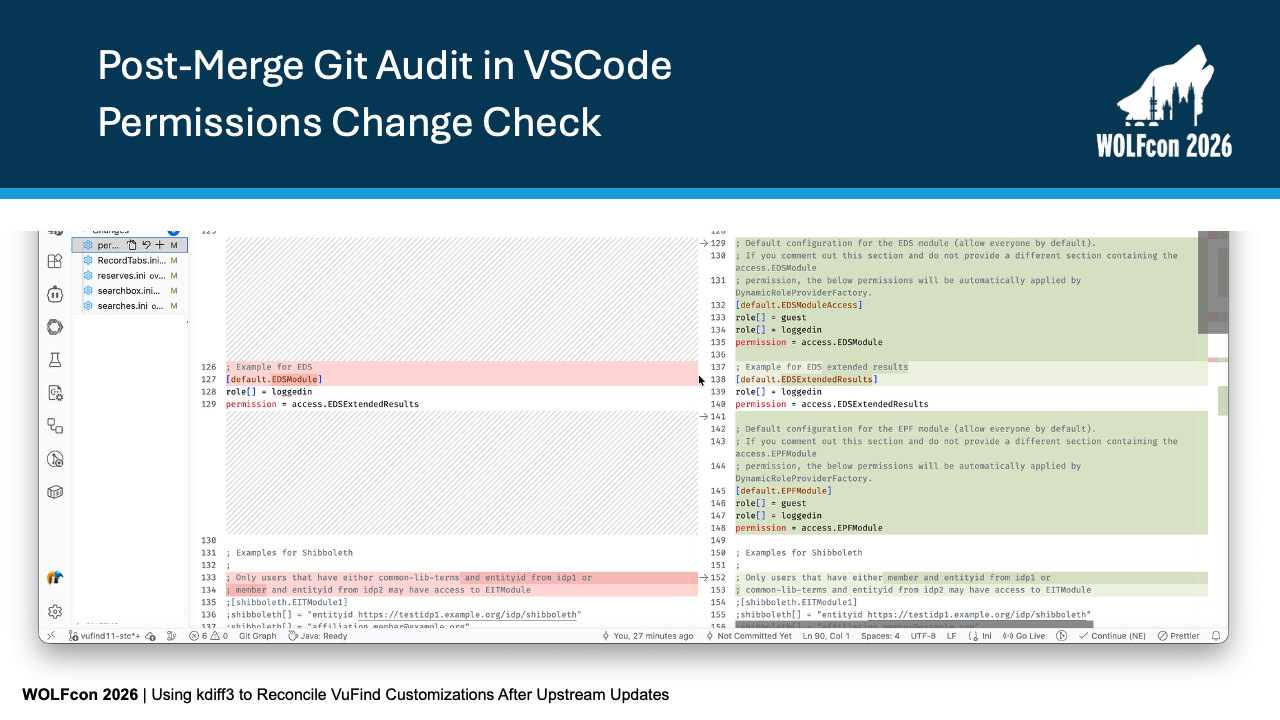
You might remember this as the 3-way merge where both our site config file and the target config file changed from the base.
What you don't see in green is the unchanged role[] = loggedin that was part of our site configuration while everything else around it that was part of the target configuration change are in our new configuration file.
To wrap up, here are the code links and original references for this workflow.
Slide 24: Resources
When I first proposed this talk, Demain said something to the effect of: "Yeah, like what we described in our blog post."
If this walk through was confusing to you, I encourage you to look at Demian's 2015 post where the describes in a similar way, and maybe that will resonate with you better than my description.
That blog post also has a bash script that you can use if you prefer that over my Python suggestion.
You can grab the Python automation script on GitHub Gist.
Automating this step saves hours during every upgrade cycle.